Before you start
- Logged in to Patient Watch
- An active patient diary open
- A template ready for the new procedure or pathway
Add to an existing diary
Open Update Diary, choose a template, decide which questionnaires to stop, then save and optionally message the patient.
Step 1
Open the diary
Select the patient diary you want to update.
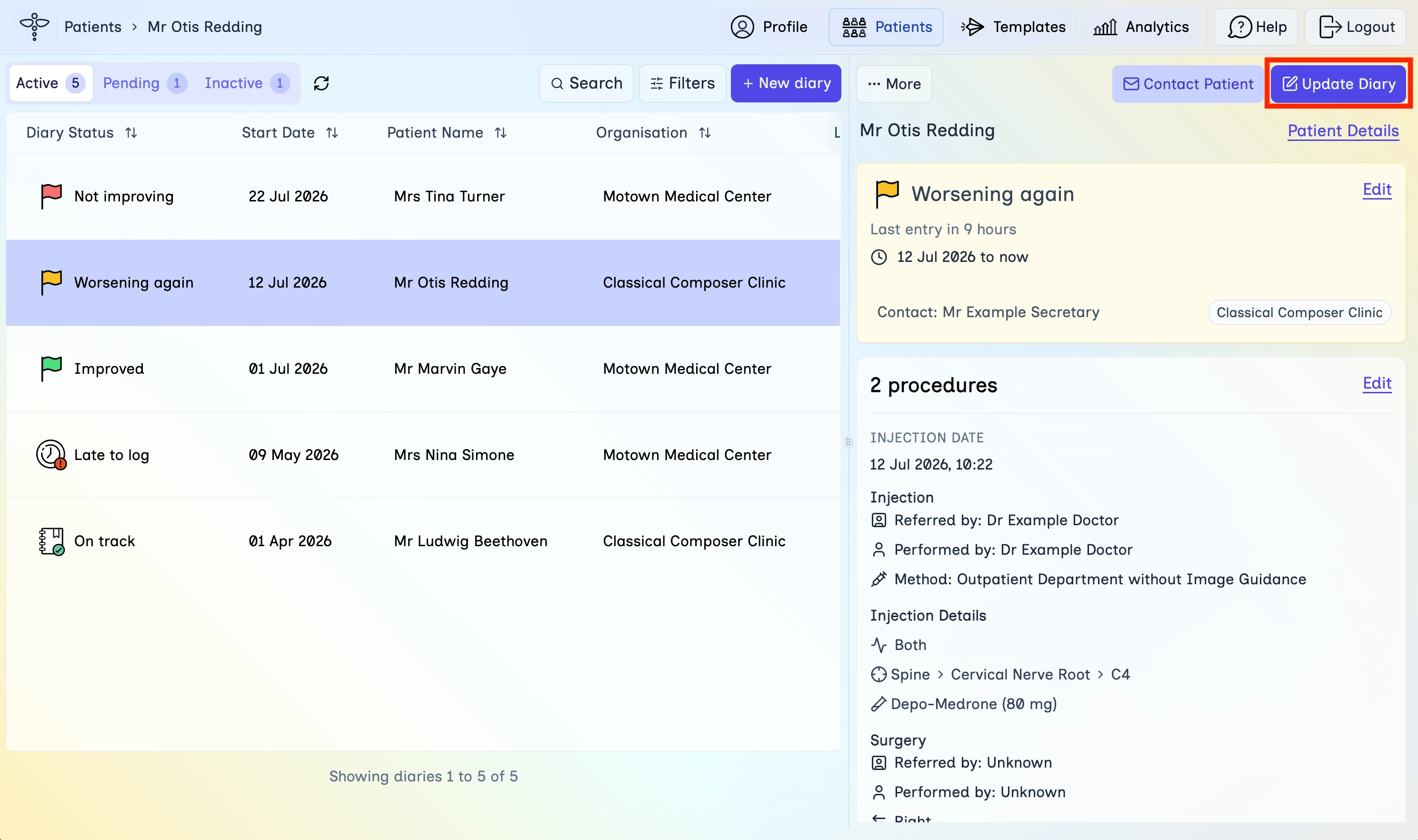
- In the top navigation, click Patients.
- Open the Active tab (or find the diary with Search).
- Select the diary so the detail panel opens on the right.
Step 2
Choose Add from template
Start the update flow from the Update Diary menu.
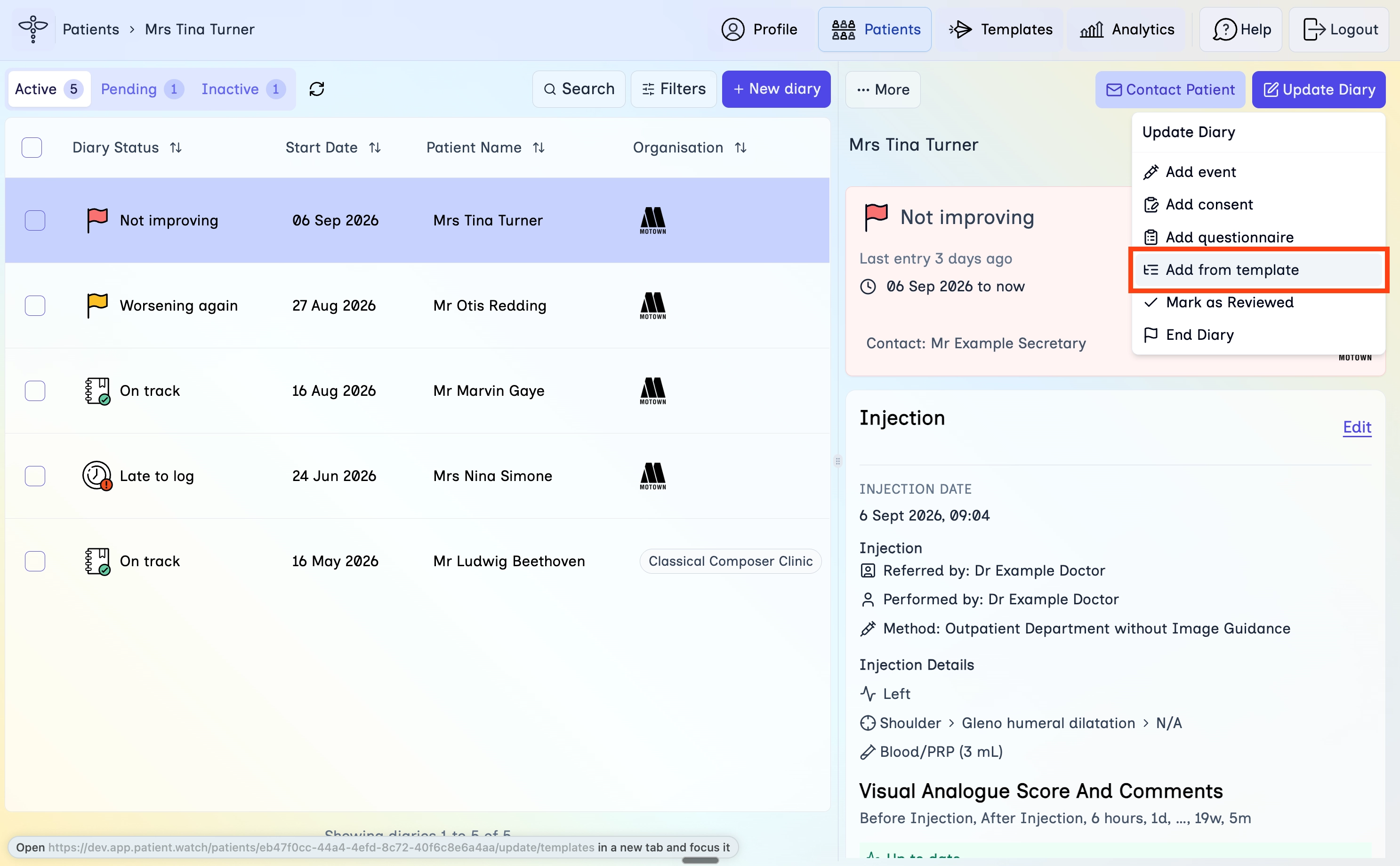
- Click Update Diary in the diary detail panel.
- Click Add from template.
Step 3
Pick a template
Choose a saved template, or add procedure and questionnaire details manually.
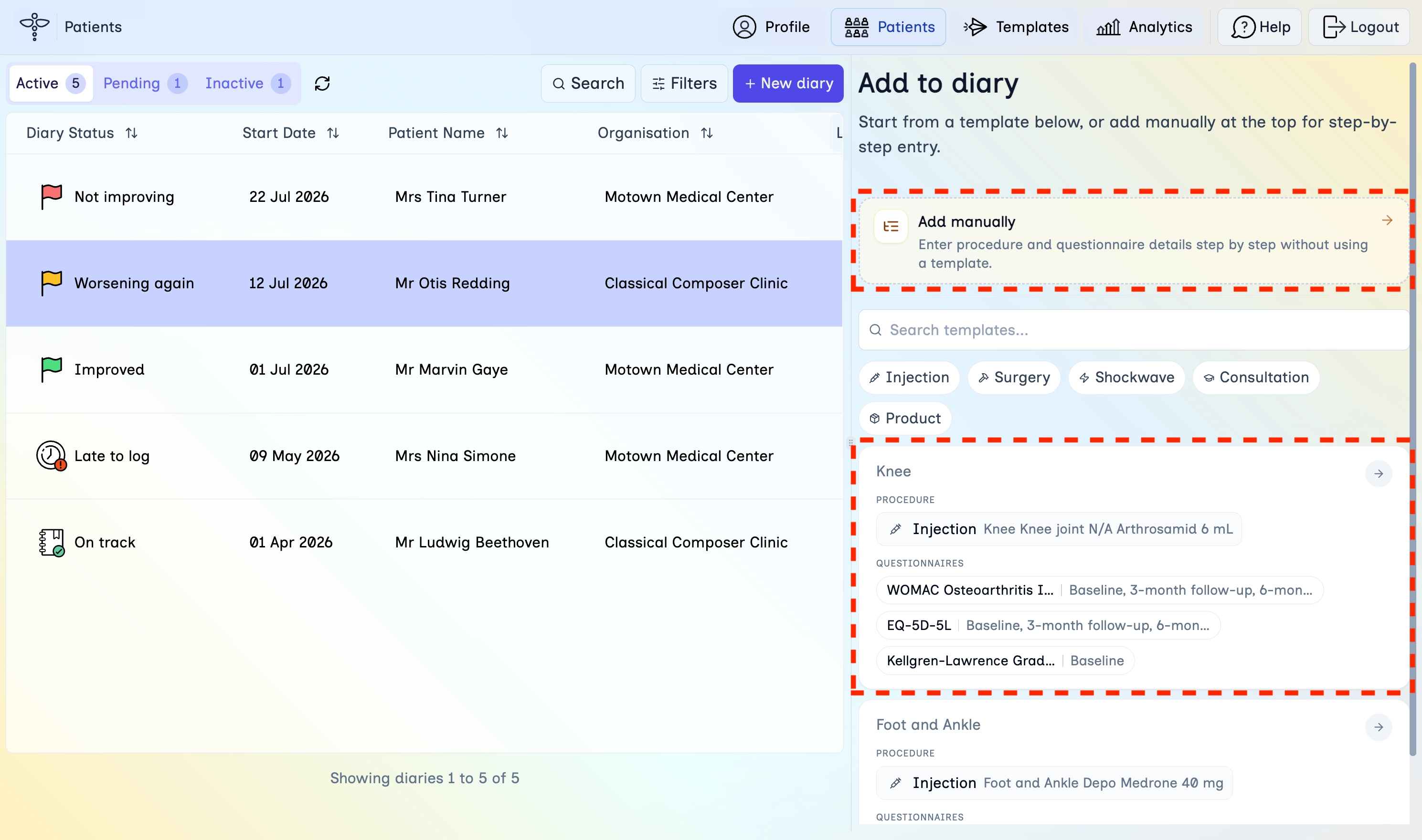
- In the Add to diary panel, search or filter by intervention type if needed.
- Click the template that matches the new procedure.
- Or choose Add manually to enter details step by step without a template.
Step 4
Stop existing questionnaires
Decide whether current questionnaire schedules should stop before the new template is added.
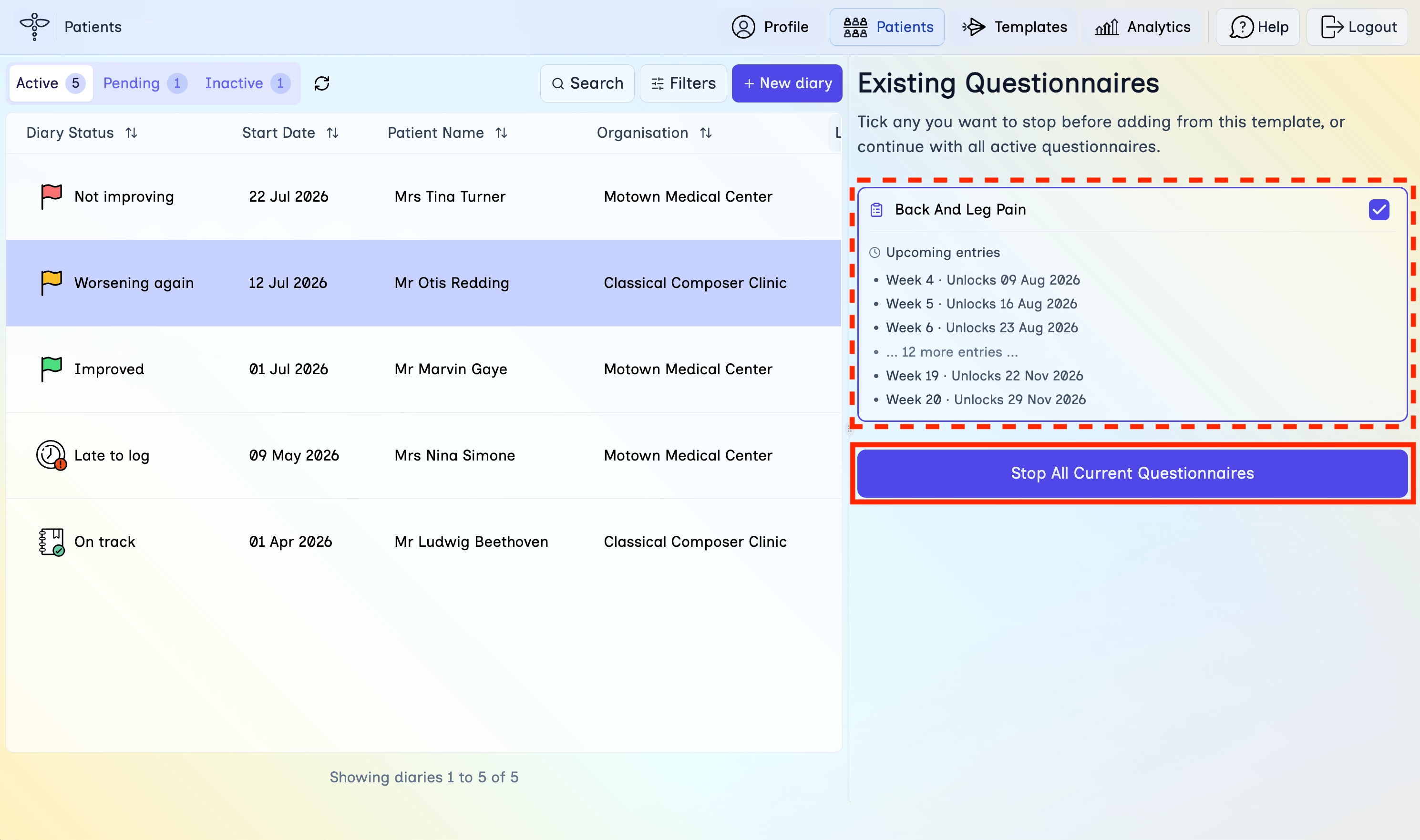
- Review the Existing Questionnaires list and upcoming entries.
- Tick any questionnaires you want to stop, or leave them active if they should continue.
- Click Stop All Current Questionnaires if you want to stop everything before continuing, or continue with your selection.
Step 5
Confirm and add
Review what will be added, then save it to the diary.
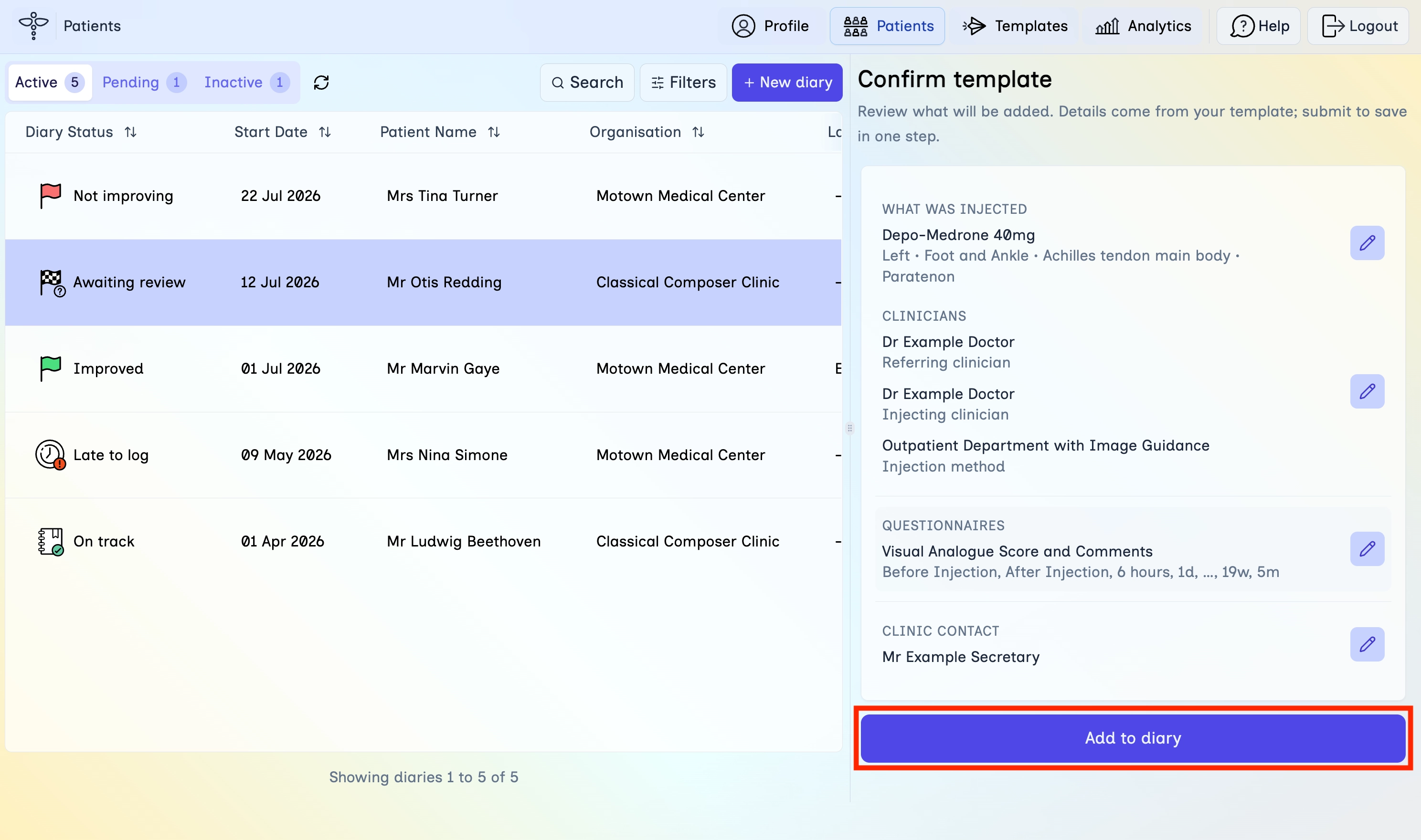
- On Confirm template, check intervention details, clinicians, questionnaires, and clinic contact.
- Use the edit icons if anything needs changing.
- Click Add to diary.
Step 6
Notify the patient
Choose whether to send a message about the diary update.
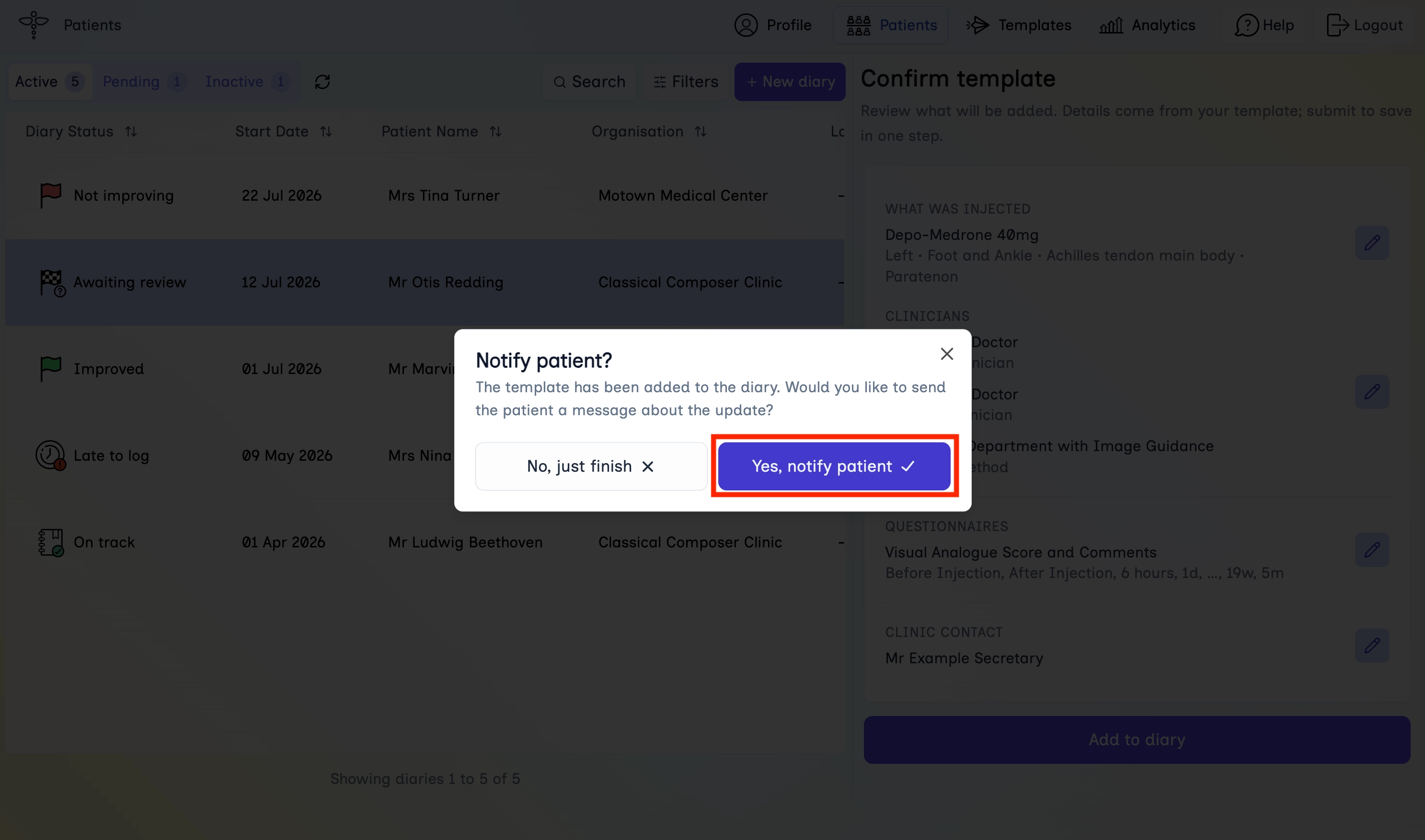
- In the Notify patient? dialog, click Yes, notify patient to open a message, or No, just finish to close without messaging.
Step 7
Send the message
If you chose to notify, review the draft and send it.
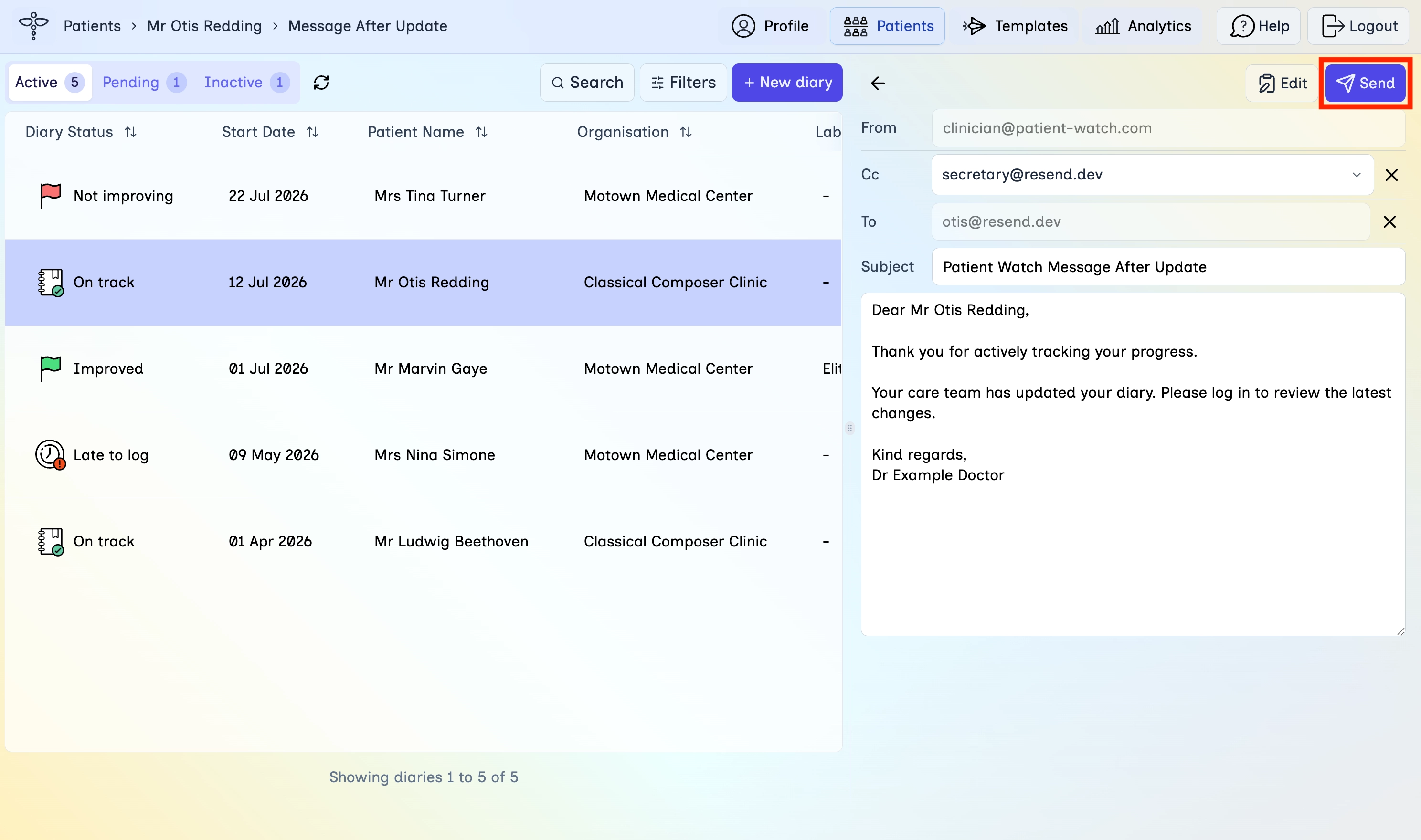
- Check the From, Cc, To, and Subject fields.
- Edit the message body if needed.
- Click Send.
Step 8
Verify the update
Confirm the new procedure and questionnaires appear on the diary.
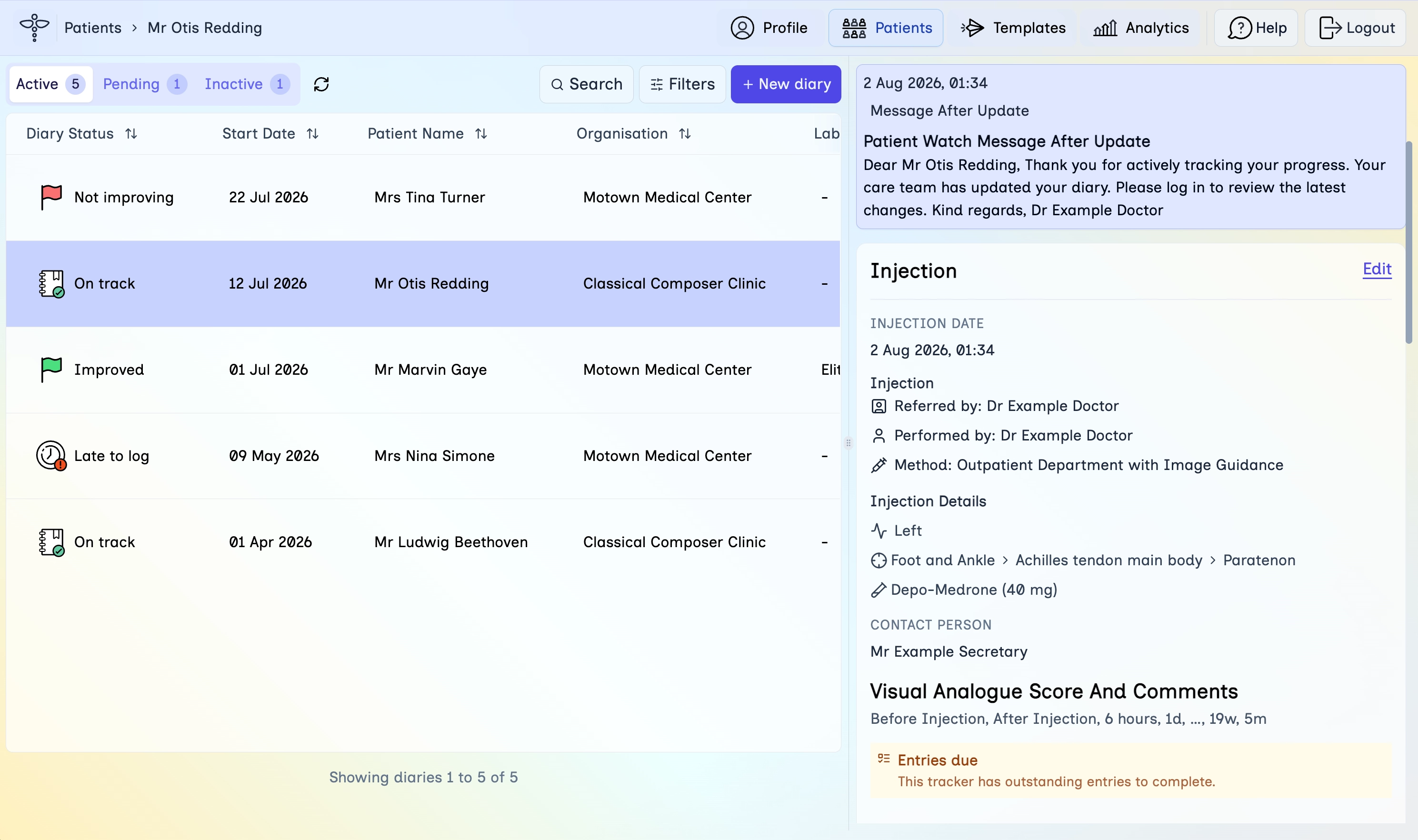
- Return to the diary detail panel.
- Check that the new injection (or other procedure) and questionnaires are listed.
- If you sent a message, confirm it appears in the recent activity on the diary.
What's next
Continue with the next lessons in the clinician learning path.