Before you start
- Logged in to Patient Watch
- An active or pending diary you are ready to close
End follow-up
Use Update Diary to end monitoring when the pathway is complete.
Step 1
Open the diary
Select the diary you want to close.
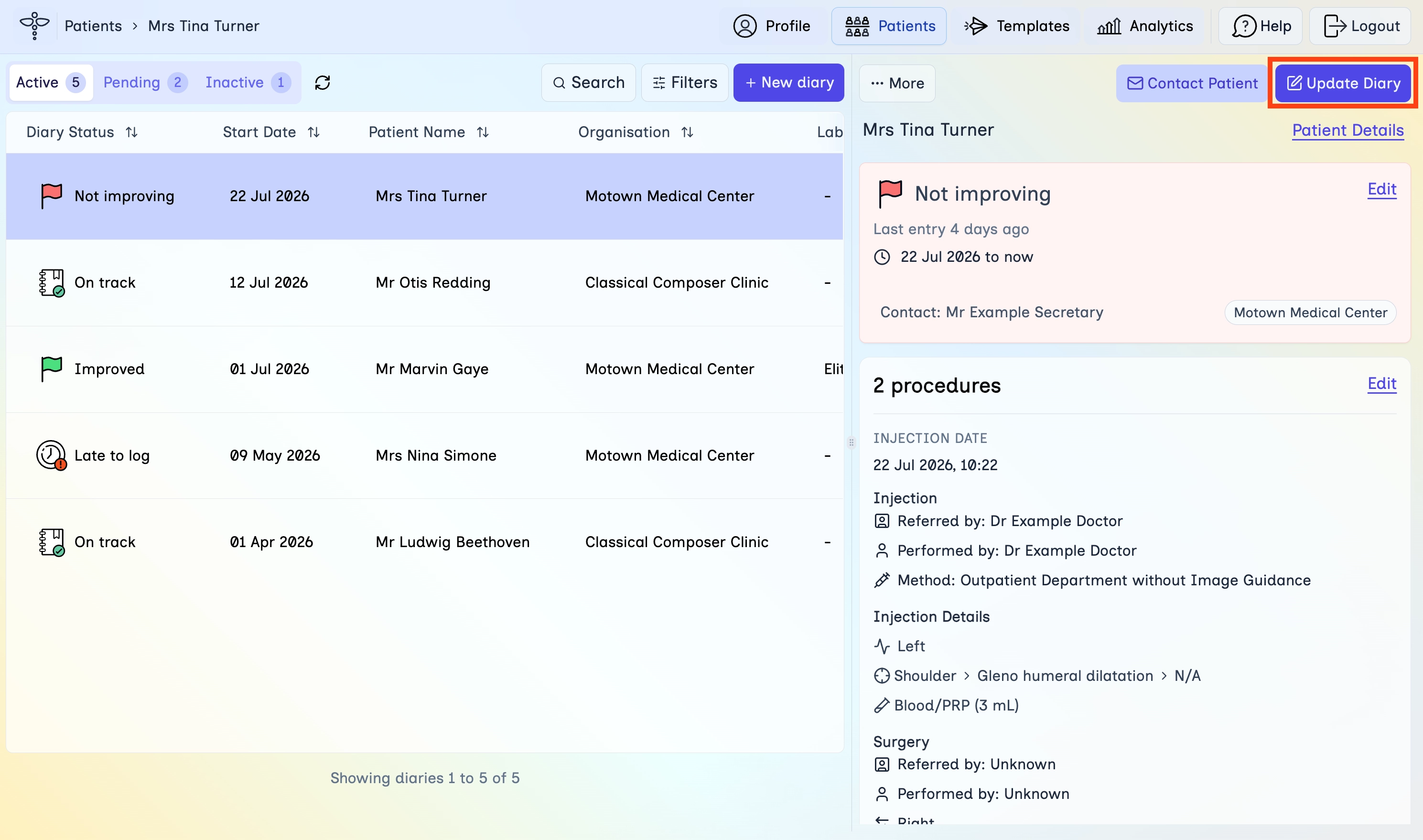
- In the top navigation, click Patients.
- Open the Active or Pending tab.
- Select the diary so the detail panel opens on the right.
Step 2
Choose End Diary
Open the Update Diary menu and start ending the diary.
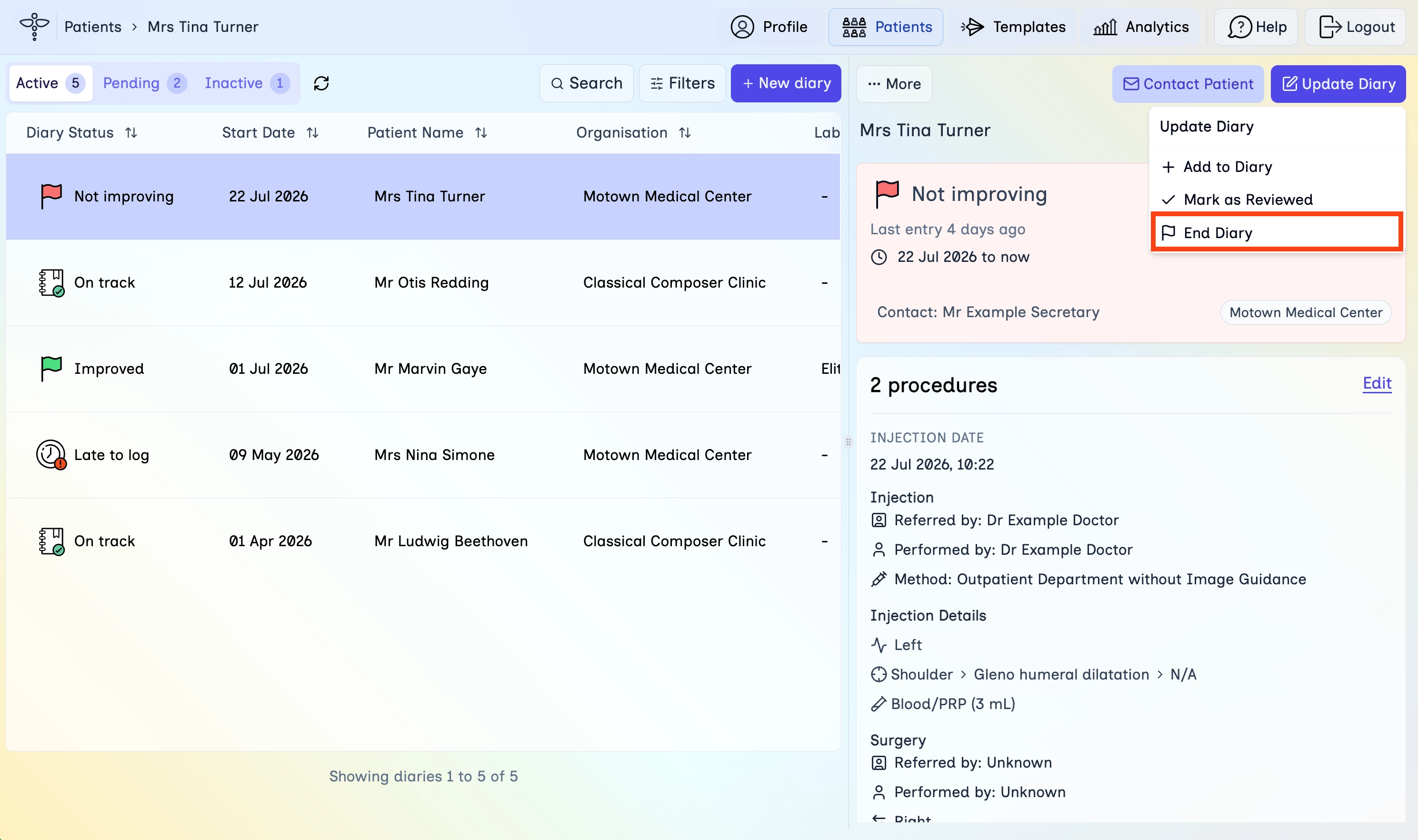
- Click Update Diary in the diary detail panel.
- Click End Diary.
Step 3
End with or without notify
Choose whether the patient should receive a message when the diary ends.
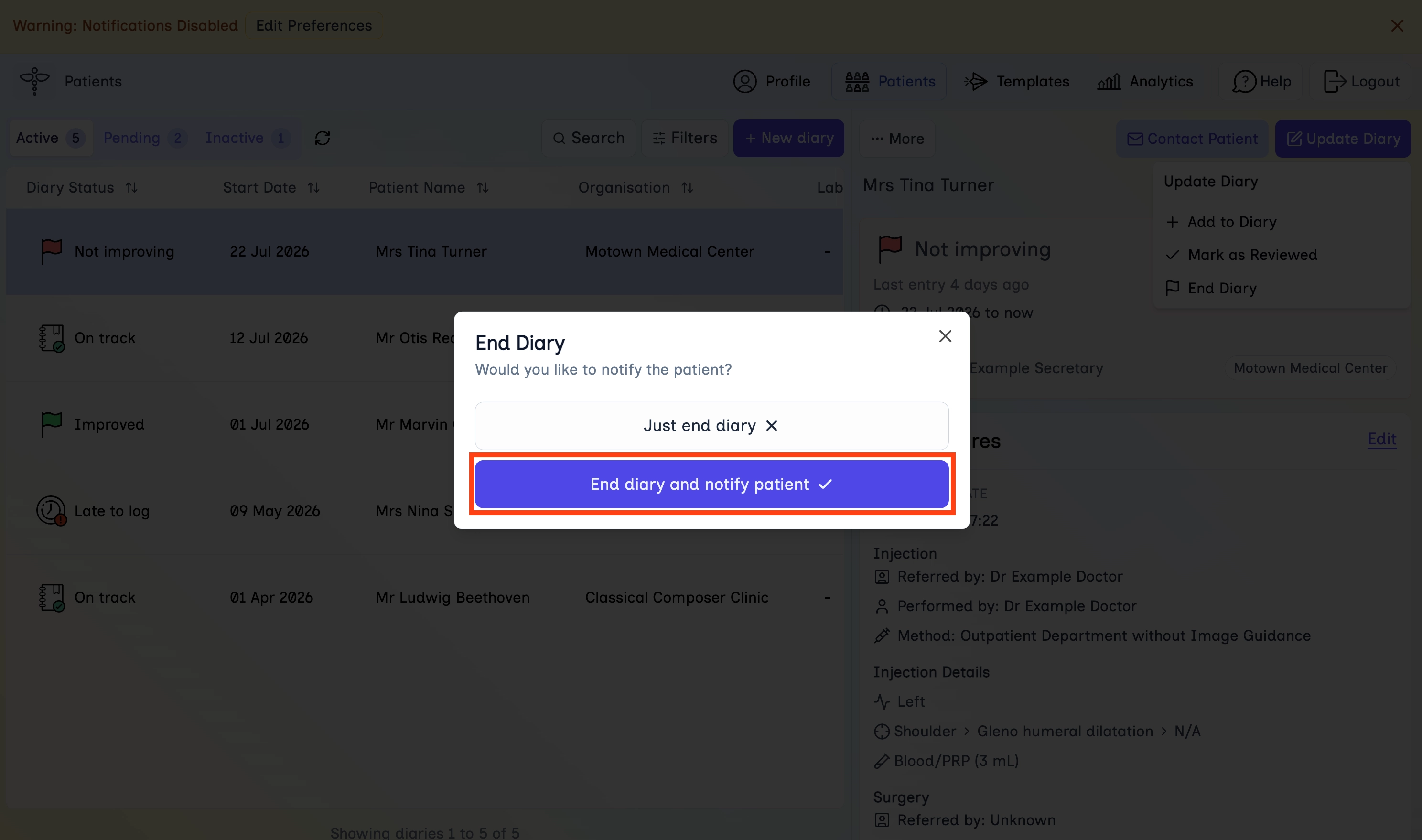
- In the End Diary dialog, read the notify question.
- Click Just end diary to close quietly, or End diary and notify patient to continue into a discharge message.
Step 4
Send the discharge message
If you chose to notify, review the discharge message and send it.
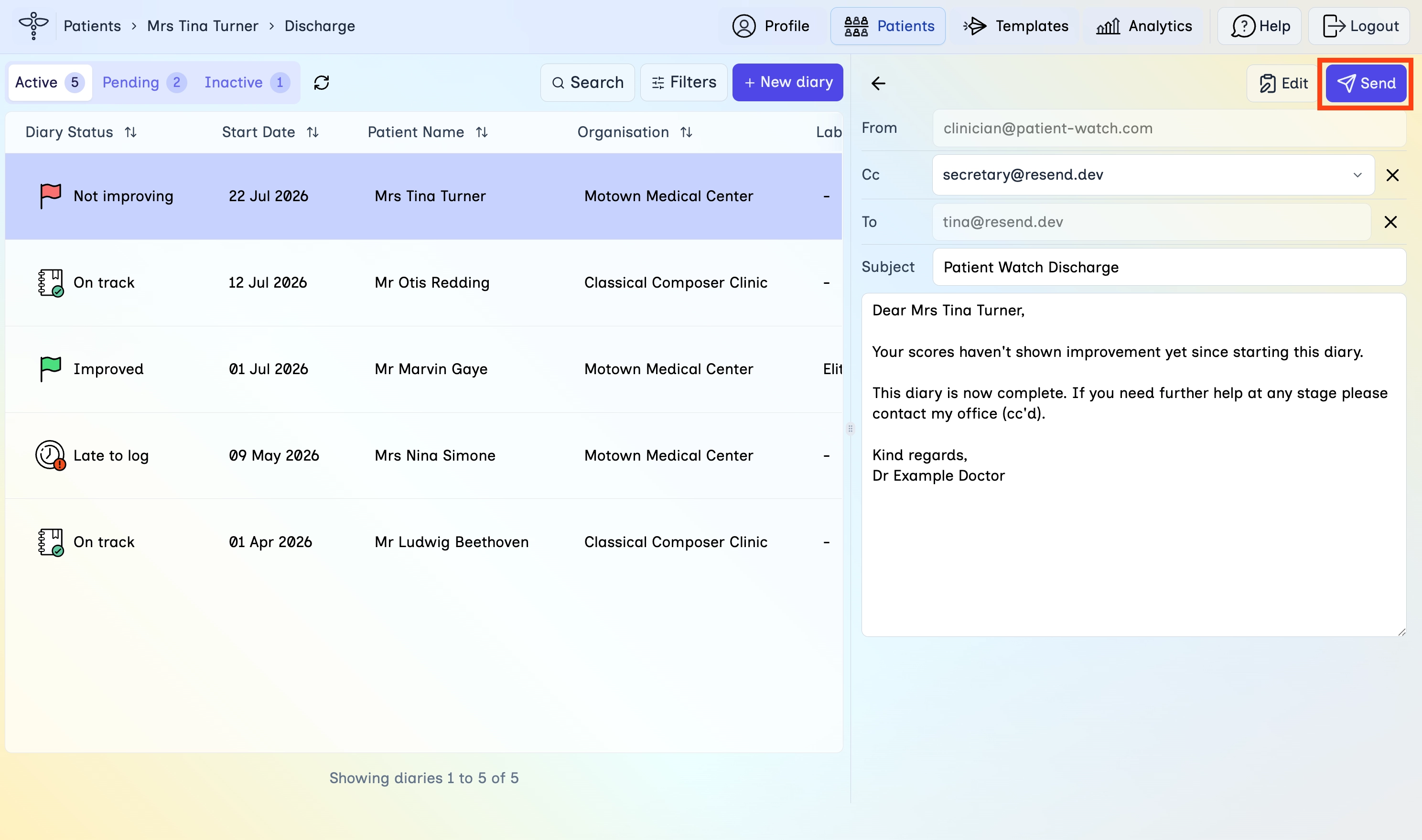
- Check the From, Cc, To, and Subject fields.
- Edit the message body if needed.
- Click Send to end the diary and notify the patient.
Step 5
Confirm under Inactive
Ended diaries move to the Inactive tab with a Completed status.
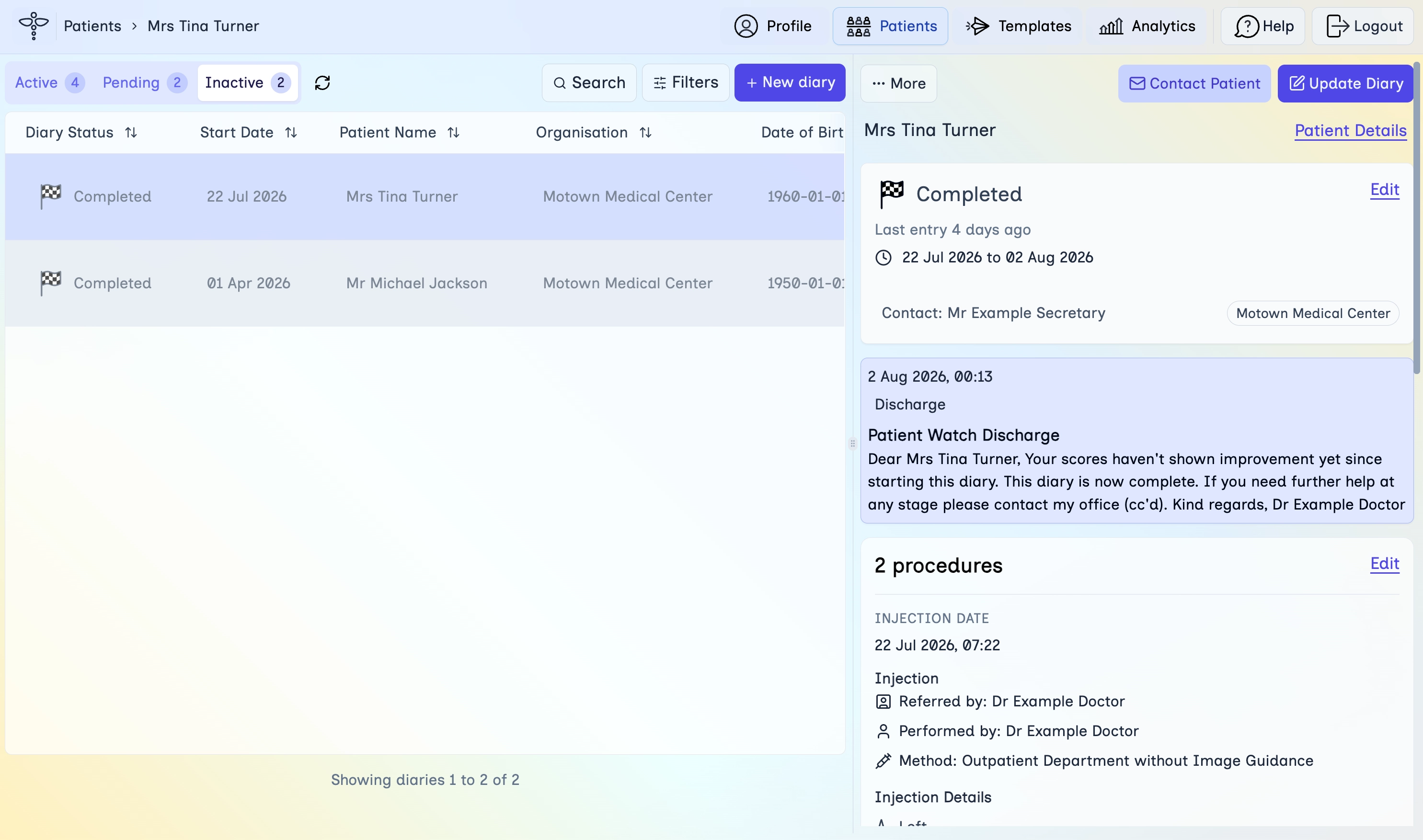
- Open the Inactive tab on the Patients page.
- Select the diary and confirm the status shows Completed.
- Review the date range and any discharge note on the diary.
- If you need to reopen follow-up later, use Reinstate from Update Diary when that action is available.
What's next
Continue with the next lessons in the clinician learning path.